Playground
The Playground is an interactive environment for testing models available through AISA before integrating them into your application. It allows you to send requests, adjust model parameters, inspect responses, and validate behavior in real time using the same APIs and configuration used for production requests.
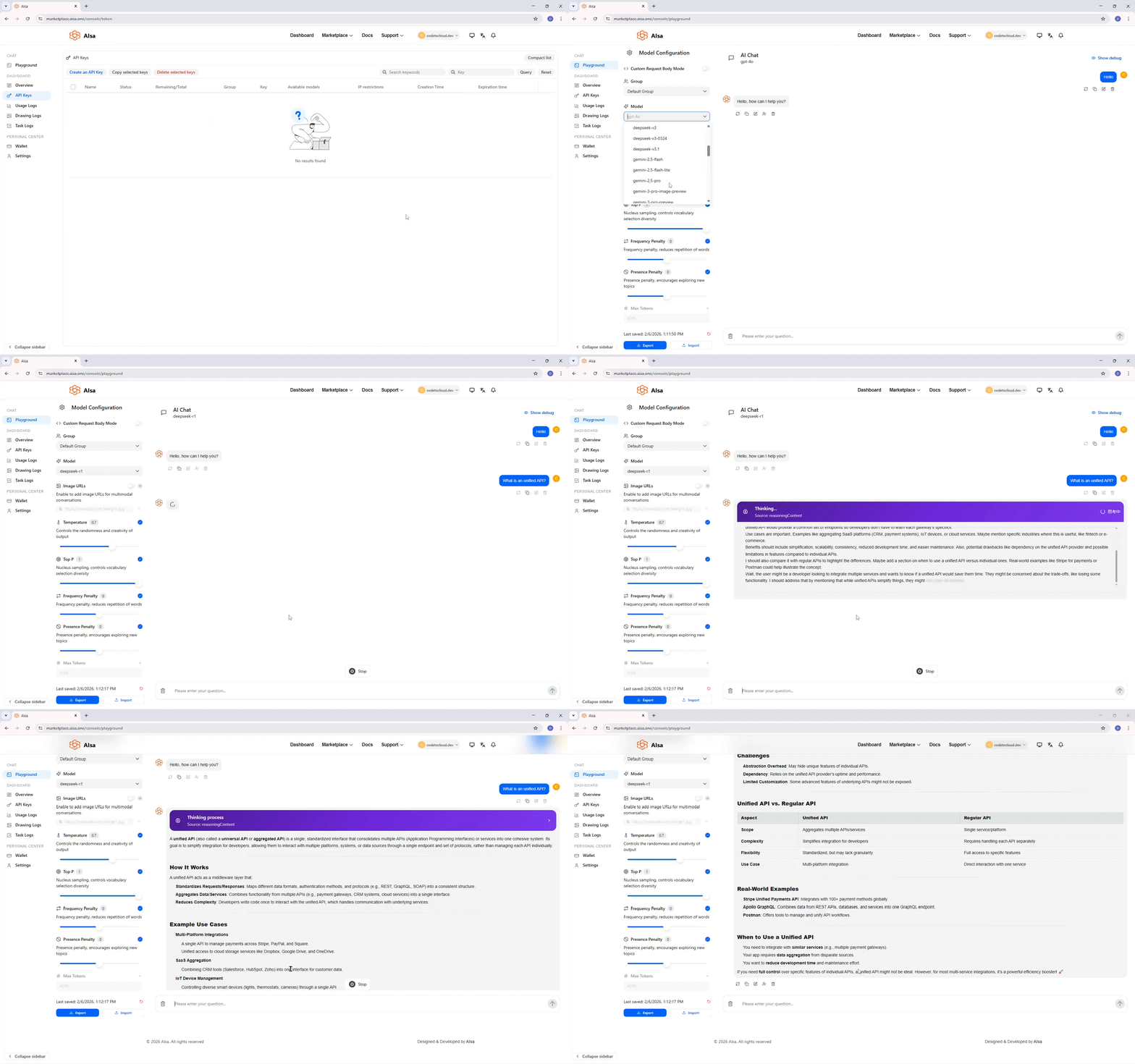
You can start using the Playground immediately after signing up. New accounts receive free credits, and the Playground can be used without generating an API key.
This page is commonly used to experiment with different models, tune generation parameters, and verify outputs during development.
Model Configuration
The left panel contains configuration options that control how requests are sent to the selected model.
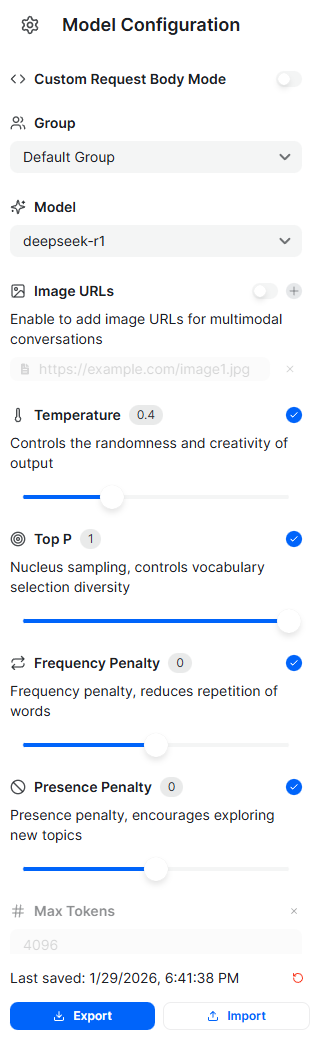
Available options may change depending on the selected model. Not all models support the same parameters or input types.
Group
The Group selector determines which workspace group the request is associated with. Groups are used to organize usage, permissions, and billing across teams or projects.
If no custom groups are configured, requests are sent under the default group.
Model
The Model selector allows you to choose which model will handle the request. This includes models from different providers, all accessed through the same unified API.
Changing the model does not require modifying the request format. Only the model identifier changes.
Configuration options and filters update dynamically based on the selected model. Parameters shown for one model may not be available for another.
Custom Request Body Mode
When enabled, Custom Request Body Mode allows you to manually define the full JSON request body. This is useful for advanced use cases where you need direct control over parameters that are not exposed through the UI.
When disabled, requests are automatically generated based on the selected configuration options.
Image URLs
The Image URLs option enables multimodal input by allowing you to attach image URLs to the request.
This is used with models that support image understanding or vision-language capabilities. When enabled, you can provide one or more image URLs that are sent alongside the text prompt.
This option is only available for models that support image input.
Generation Parameters
These controls affect how the model generates responses. Changes apply immediately to new requests.
Available generation parameters vary by model.
Temperature
Temperature controls the randomness of the model’s output.
Lower values produce more deterministic and focused responses. Higher values increase creativity and variation.
Top P
Top P (nucleus sampling) limits token selection to the smallest possible set whose cumulative probability meets the specified threshold.
This influences how diverse the model’s vocabulary choices are during generation. Top P is commonly used instead of temperature, or in combination with lower temperature values.
Frequency Penalty
Frequency Penalty reduces the likelihood of repeated words or phrases appearing in the response. Higher values encourage less repetition across the generated output.
Presence Penalty
Presence Penalty encourages the model to introduce new concepts rather than continuing existing ones. Increasing this value makes the model more likely to explore new topics in longer responses.
Max Tokens
Max Tokens sets the maximum number of tokens the model can generate in a response. This helps control response length and usage cost.
If not explicitly set, the model’s default limits apply.
Chat Panel
The main panel on the right is where you interact with the model.
- Enter your prompt in the input field at the bottom
- Submit the request to receive a response from the selected model
- View generated output in the conversation view
Responses appear exactly as they would when using the API, making the Playground useful for validating prompt behavior and output quality.
Debug Mode
The Show debug option reveals additional request and response details.
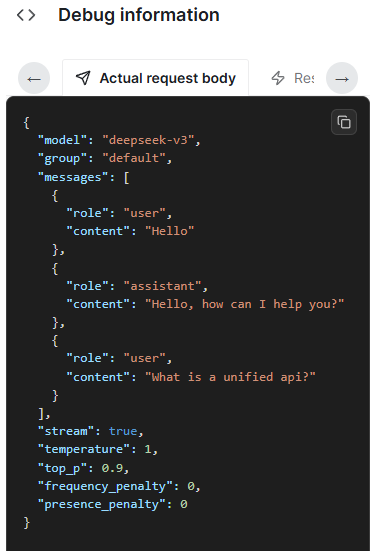
This includes raw request payloads and internal metadata, which can be helpful when troubleshooting unexpected behavior or validating request structure.
Import and Export
The Playground supports importing and exporting configurations to make testing reusable.
- Export downloads the current configuration and request setup
- Import loads a previously saved configuration
This is useful for sharing test setups across teams or reusing common scenarios.
Usage and Billing
All requests made in the Playground count toward usage and billing, the same as API requests.
New users can begin testing immediately using the free credits provided at signup, without creating or managing API keys.
What the Playground Is Best Used For
The Playground is intended for:
- Comparing outputs across different models
- Tuning generation parameters before production use
- Testing multimodal inputs
- Debugging prompt behavior
- Validating request configuration without writing code
Updated about 1 month ago